
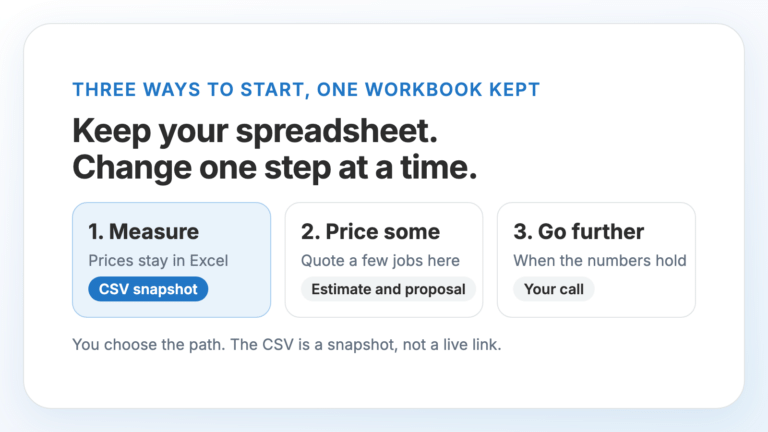

Yes. Many small contractors keep the spreadsheet they trust for pricing and use takeoff software only to measure. The quantities come out as a CSV file that opens in Excel. The value is a measured scope you can check on the drawing. The cost is a handoff someone has to own: a CSV is a snapshot, so later changes need a new export.
This guide shows a real export from TakeCost checked line by line against the app, three ways to start, and a small pilot to run on a job you have already priced.
Do you have to replace your whole estimating process?
No. Your workbook holds things that took years to build: supplier prices, labour rates, waste habits and the formulas you know are right. Throwing that away to try new software is a big ask, and you do not have to.
What changes is one stage. Today you probably measure on paper or a PDF and type the totals into the workbook. With takeoff software you measure on the drawing on screen, then bring the totals into the same workbook. The pricing side can stay exactly as it is.
Keeping Excel is a reasonable choice. The real decision is where the boundary sits: which step happens in the software, which step happens in the spreadsheet, and who moves the numbers between them.
| Path | What changes | What stays in your workbook | Good fit when |
|---|---|---|---|
| 1. Measure only | You measure in TakeCost and download the quantities as a CSV | All pricing, labour, markup and the quote | Your workbook works and the slow part is measuring |
| 2. Price some jobs | On a few jobs you also price and build the proposal in TakeCost | Pricing for every other job, and your rate list | You are tired of copying numbers on small, repeat jobs |
| 3. Go further later | More of your jobs are priced in the software | Whatever still earns its place | Paths 1 and 2 gave numbers you checked and trust |
Start with the smallest change that gives you a result you can check. Path 1 is an easy first step. Path 2 is where you stop copying numbers between tools.
What does a real export look like?
We downloaded the quantities CSV from a TakeCost demo project and opened it in a spreadsheet. In TakeCost it is one click: open the Export panel in the Takeoff tab, choose the sheets, then Download CSV. It worked on Core, the free plan.
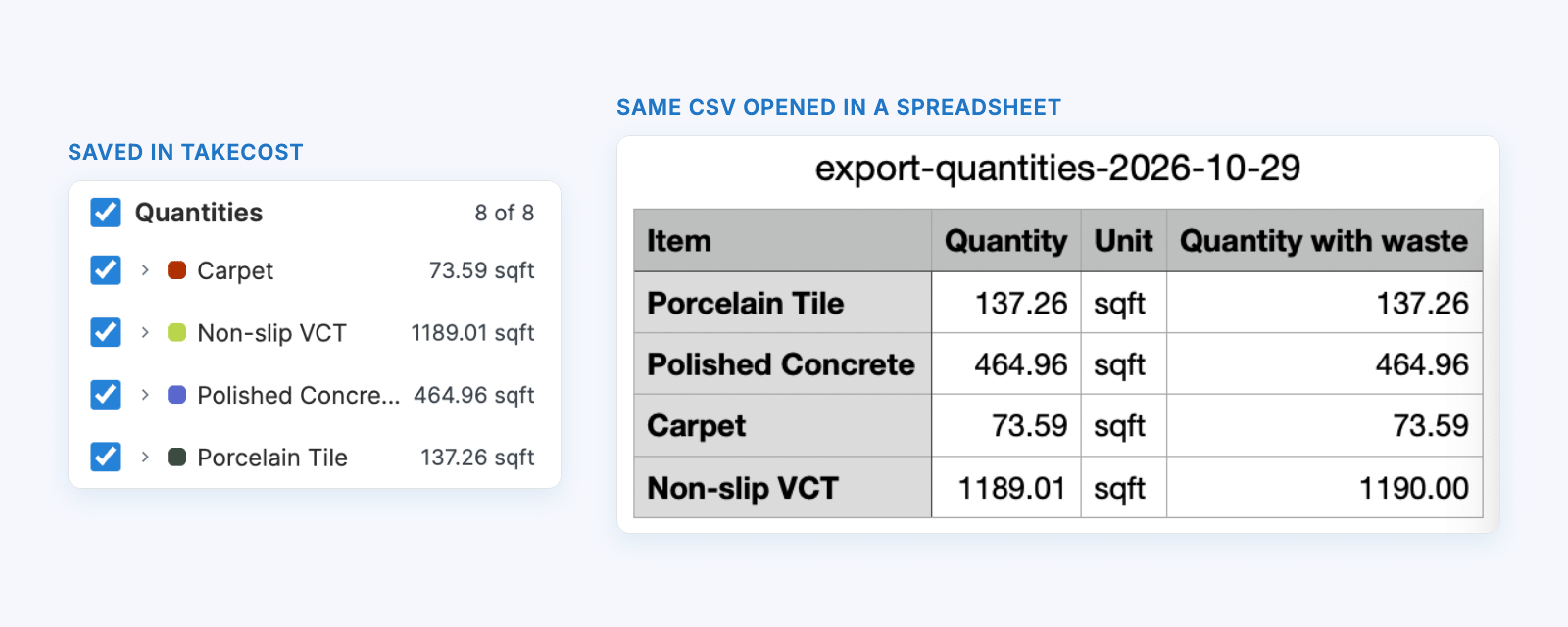
The file has one row per material and four columns: Item, Quantity, Unit and Quantity with waste. Here is the check we ran, line by line.
| Item | In TakeCost | CSV quantity | CSV with waste |
|---|---|---|---|
| Carpet | 73.59 | 73.59 | 73.59 |
| Non-slip VCT | 1,189.01 | 1,189.01 | 1,190.00 |
| Polished concrete | 464.96 | 464.96 | 464.96 |
| Porcelain tile | 137.26 | 137.26 | 137.26 |
| Total | 1,864.82 | 1,864.82 | 1,865.81 |
Every quantity matched, and every unit read sqft. One number needed a second look: VCT shows 1,190.00 in the last column. That is the quantity on its priced line in the TakeCost estimate. The line has no waste allowance, so the extra 0.99 sq ft is only the line rounding up to whole units of tile, not waste. The three materials without a priced line show the same number in both columns. Before you paste anything, decide which column your workbook should use.
Notice what the file does not carry: no sheet numbers, no drawing date or revision, no prices. Write the drawing set and date next to the pasted numbers in your workbook, so anyone can tell which drawings they came from.
How do you keep the workbook up to date?
A CSV is a dated copy of your quantities. When the drawing changes, update the measurement in TakeCost, export again and replace the old numbers in your workbook. Name one person to do it, so the workbook and the takeoff stay in step.
What has to survive the handoff?
A handoff is only useful if the numbers arrive in a form your workbook can trust. Check these every time:
- Names. Material names in the takeoff should match the rows your formulas look up, or you will be retyping them.
- Units. The Unit column names the unit, such as sqft. Your workbook must expect the same unit, or the price per unit is wrong.
- Which quantity. If your workbook adds its own waste, paste the Quantity column and apply your allowance once. If you use Quantity with waste, first check the waste and rounding set on that line in TakeCost, and do not add your own on top. Applying the same allowance twice quietly inflates the bid.
- The drawing basis. Record the drawing set, revision and export date beside the numbers. The file will not do it for you.
- One owner. Name the person who exports and pastes. Two people copying from different exports is how a number changes and nobody knows why.
If you need help with units and how quantities turn into prices, our guide to building a construction estimate covers it.
What value is left if pricing stays in Excel?
Keep the pricing knowledge you have already built. Use TakeCost to measure and organize the scope, then bring checked quantities into your existing workbook. You get a measurement basis you can see on the drawing and quantities you can come back to when something changes, while your rates and formulas stay where they are.
| If you measure in TakeCost | What you gain | What you still own |
|---|---|---|
| The measured scope | Each quantity is drawn on the sheet, so you can see what was counted and what was left out | Deciding what belongs in the bid |
| Checking later | You can open the project and find where a number came from | Keeping the workbook in step with the takeoff |
| Revisions | You update the measurement on the drawing rather than starting over | Exporting again and replacing the old numbers |
| Copying | Totals arrive in one file instead of being retyped from paper | Pasting them into the right rows and checking units |
Keep your workbook while it works. But if you export, paste and re-check the same small jobs every week, try pricing a few of them in TakeCost. The measured quantities go straight into the priced lines and the proposal, with nothing copied. On TakeCost Core you can price estimate lines and build a proposal from them.
Want to try the export on your own drawings? Measure one scope, download the CSV and compare it with your workbook. Get started, it’s free.
How do you test this before moving a live bid?
Use a job you have already priced, so you know what the right answer looks like.
- Pick one finished job and one scope you know well, such as the flooring.
- Keep a copy of the original workbook untouched.
- Measure that scope in TakeCost from the same drawings.
- Download the CSV and paste the quantities into a copy of the workbook.
- Compare line by line: names, units and quantities. Explain every difference.
- Change one measurement, export again and update the copy. Note how long it took and who did it.
Call the pilot a success when the quantities reconcile and the update step is clear to whoever will do it. Opening the file is not the test. For the button-by-button steps, follow our TakeCost step-by-step takeoff guide.
About our example
We checked one quantities export from one demo project with four area materials, on October 29, 2026, and opened it in a spreadsheet. We did not test linear or count items in this export, metric units, very large projects, or importing your own price list. We did not measure time saved.
Frequently asked questions
Can I price takeoff quantities in my current workbook?
Yes. Download the quantities as a CSV and paste them into your workbook. Check that the names and units match what your formulas expect.
Is a CSV export a live Excel link?
No. A CSV is a copy of the numbers at the moment you export. TakeCost does not have a live Excel link, so the workbook does not update by itself.
What happens when I change a quantity after exporting?
The takeoff updates in TakeCost, but the file you already downloaded does not. Export again and replace the old numbers, and note the new date.
Do I need a paid plan to export a CSV?
No. The quantities CSV downloaded on TakeCost Core, the free plan. See the pricing page for what each plan includes. Everyone who uses TakeCost needs their own account.
Reviewed by: Gevoni Thomas, TakeCost
Sources
- Export test: TakeCost demo project, ground floor plan, quantities CSV downloaded from the live TakeCost app on October 29, 2026, on a Core account, and opened in a spreadsheet.
- TakeCost plans: the in-app plan page and takecost.com/pricing, checked October 29, 2026.
- Three paths and pilot: a decision aid made for this guide.