
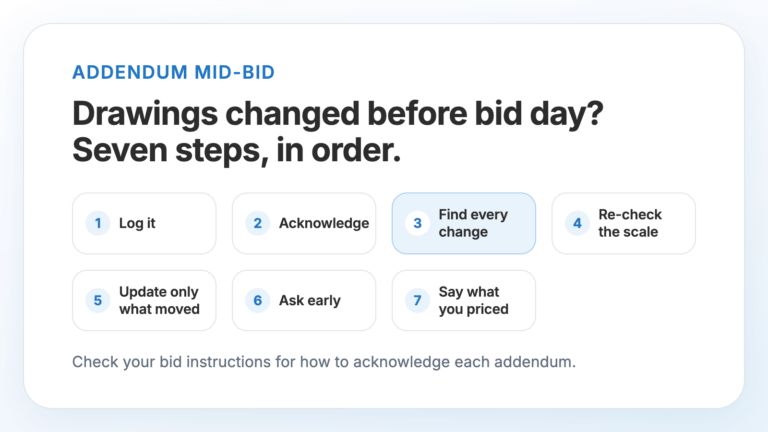

When an addendum or a revised set lands while you’re pricing, don’t start over. Log it and read all of it, acknowledge it the way the bid form asks, find every change by comparing whole sheets (the clouds won’t show you all of them), re-check the scale on new sheets, update only the quantities and prices that moved, ask your questions early, and say in your proposal which drawings and addenda your price is based on.
Below is that checklist step by step, what revision clouds tend to miss, and how to do the same steps in TakeCost without losing the takeoff you already have.
Addendum, revised drawing or bulletin: what just arrived?
- Addendum. A change to the bid documents issued before bids close. It can change the drawings, the specs, the bid form or the bid date, and it becomes part of what you’re pricing.
- Revised drawing. A sheet issued again with changes, usually marked with a revision cloud and a new line in the revision block. It often comes with an addendum.
- Change order. A change after the contract is signed. That’s priced differently, and it’s not what this guide is about.
Names differ by owner and region, so read what you were sent, not what it’s called.
What to do when an addendum arrives: the checklist
| What to do | Why | |
|---|---|---|
| 1. Log it | Write down the addendum number, date, what it changes and which sheets it lists. | You need the list for the bid form and the proposal, and it shows if you missed one. |
| 2. Acknowledge it | Do it the way your bid instructions ask. Many bid forms list each addendum to sign or tick. Check whether the addendum replaces the bid form itself. | On many bids, a missing acknowledgement can get your price rejected. |
| 3. Find every change | Start with the clouds and the revision block, then compare each re-issued sheet with the one you priced: plans, schedules, notes and details. | A changed schedule or note doesn’t always get a cloud. |
| 4. Re-check the scale | Check the scale on every new or re-issued sheet before you measure on it. See how to check the scale on a PDF plan. | A sheet reprinted at a different size or scale throws off every number on it. |
| 5. Update only what moved | Keep your takeoff. Remeasure the areas that changed and reprice those lines. | Starting over costs days you don’t have and brings in new mistakes. |
| 6. Ask early | Send your questions as soon as you find them. If the change is big and the time is short, ask in writing whether there’s more time. | Question deadlines often fall days before bid day. |
| 7. Say what you priced | List the drawing issue and the addenda your price includes. See what to include in a construction proposal. | If the drawings change again, you can show what your price was for. |
Steps 1 and 2 are paperwork, and they’re the ones that get bids thrown out. Do them the day the addendum arrives, before you open the takeoff.
An example addendum log
One line per addendum is enough. Here is what it could look like for a small fit-out (an example, not a real addendum):
| Date | What it changes | Sheets | Done | |
|---|---|---|---|---|
| Addendum 1 | Nov 4 | Lunchroom floor finish changed from VCT to porcelain tile | A1 | Acknowledged on bid form, A1 re-measured, lines repriced |
| Addendum 2 | Nov 7 | Answers to bidder questions, bid date unchanged | None | Acknowledged, nothing to price |
What revision clouds miss
A cloud shows where the designer meant to change something. It doesn’t promise that nothing else moved. These are the changes worth looking for on every re-issued sheet:
- A room schedule or finish schedule row that changed while the plan didn’t.
- A general note or keynote that was reworded.
- A door, fixture or outlet tag that was added or moved.
- A sheet that was reissued at a different size or scale.
- A detail reference that now points somewhere else.
Here’s a real one. On the TakeCost demo floor plan, room 2 is Lounge in the room schedule and Showroom on the plan. That’s one sheet, not a revision, but it’s exactly the kind of difference nobody clouds. If a revised set changed only the schedule, nothing on the plan would point you to it, and the finish you priced for that room could quietly be wrong.
The fix is to compare the whole sheet with the one you priced, not just read the clouds. For what a change costs you once you’ve found it, see the cost of drawing changes before construction.
Handling a revised drawing set in TakeCost
In TakeCost, a revised set goes in next to the one you’re pricing, not over it. Your takeoff and estimate stay on the set you know until you decide to switch. Here is how the checklist maps to the app:
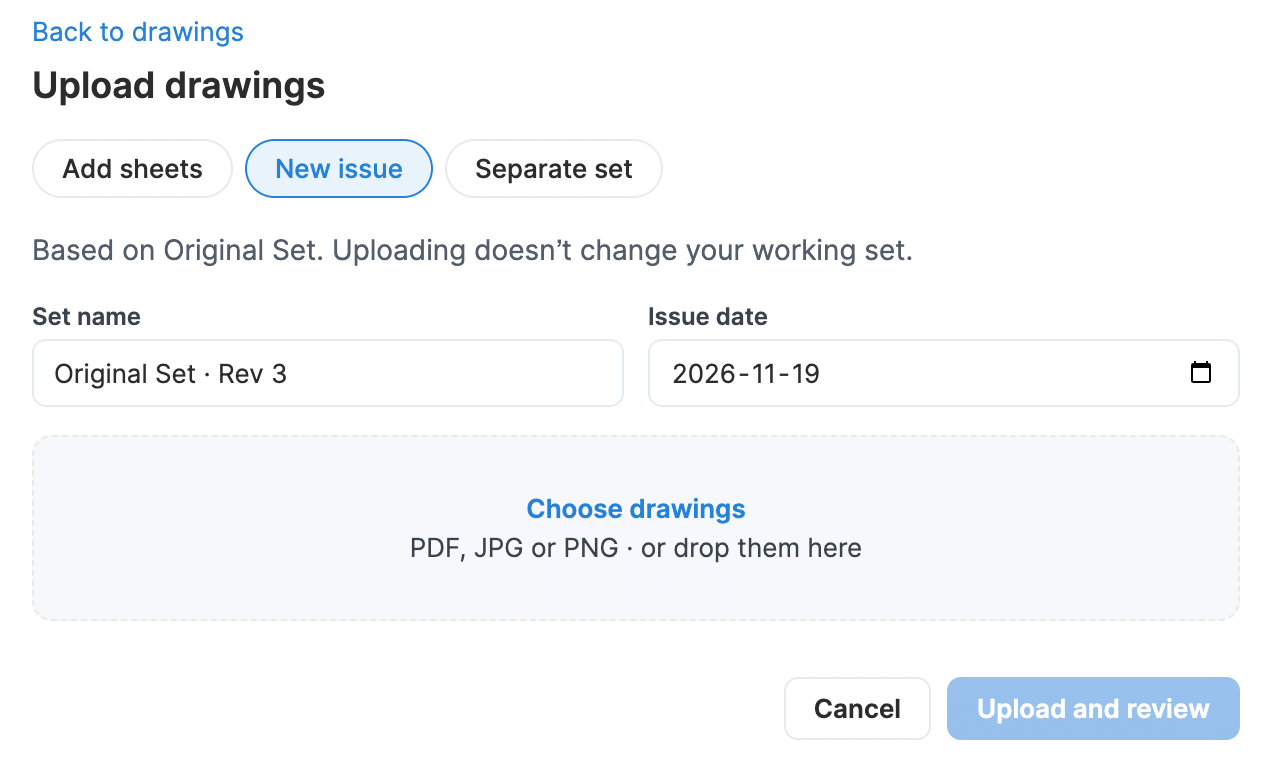
- In the Drawings window, choose Upload drawings, then New issue. Give it a set name, like the addendum number, and the issue date. Uploading doesn’t change your working set.
- Open the new issue to read it. A banner tells you browsing it changes nothing, and your current set stays the working set until you choose Use for takeoff.
- Choose Compare for a list of which sheets were added, re-issued or removed, and Overlay on canvas to see the old and new sheet on top of each other. For how to read the overlay and what a change costs, see the cost of drawing changes.
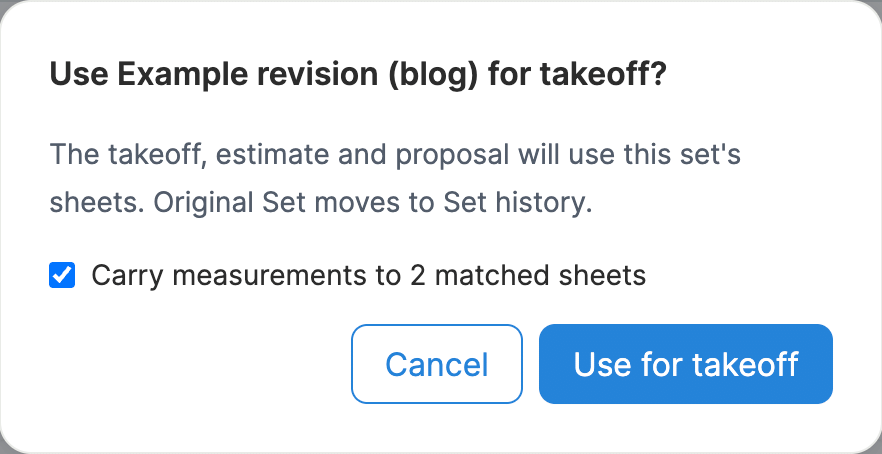
- When you’re ready to price the new issue, choose Use for takeoff. The dialog offers to carry measurements to the matching sheets, so you keep the takeoff and fix only what moved. The old set moves to set history.
- Re-check the scale on the new sheets, remeasure what changed, and the priced lines in the estimate update from the new quantities.
- On the Proposal tab, the scope is named after the drawing folder, not the issue. Write the issue name and the addenda you included in the intro or the proposal notes.
Drawing revisions come with TakeCost Pro. Check the pricing page for what each plan includes.
Price your next bid from the drawings and keep every issue in one place. Get started, it’s free.
About our example
The screens are from the TakeCost demo project in the live app on November 19, 2026, on a Pro account. The revised sheet is an example we made for an earlier guide by changing one finish on the demo floor plan. We opened the Use for takeoff dialog but didn’t confirm it, so we haven’t tested what carrying measurements does on this project, and the demo still prices the original set. The addendum log is an example, not a real addendum. The checklist is general guidance, not legal advice: your bid instructions decide how addenda are acknowledged.
Frequently asked questions
Do I have to acknowledge every addendum?
Usually, yes. Most bid forms ask you to list or sign for each one. Check your bid instructions, because the rules are set by whoever is asking for the bids.
What if an addendum comes the day before bids close?
Ask in writing whether the bid date will move. If it doesn’t, price what you can, and if the instructions allow it, say clearly what your price does and doesn’t include.
Do I have to redo my takeoff?
No. Keep it, find what changed, and remeasure and reprice only those areas.
What’s the difference between an addendum and a change order?
An addendum changes the bid documents before bids close. A change order changes the contract after it’s signed.
How do I show which drawings my price is based on?
Name the drawing issue or date and list the addenda you included in your proposal.
Measure, price and send your next bid from one set of drawings. Get started, it’s free.
Reviewed by: Gevoni Thomas, TakeCost
Sources
- Upload drawings, New issue, Compare and Use for takeoff: TakeCost demo project in the live app, November 19, 2026.
- Lounge and Showroom: room schedule and plan on sheet A1 of the demo drawing set.
- Example addendum log: made for this guide.