

Sharing a cloud takeoff means your site supervisor can open the same saved quantity the estimator is pricing, instead of asking for screenshots. It helps when the same scope questions keep going back and forth. It does not decide who changes the takeoff or who owns the price. Agree on that first, then give each person only the access they need.
This guide follows one site question on a demo project. It shows how a supervisor can use the shared takeoff with the crew, what a shared colleague can see and change in TakeCost, and a short test to run before your team relies on it.
What problem does sharing the same plan actually solve?
Picture a small flooring bid. The estimator has measured 1,189.01 sq ft of non-slip VCT on the ground floor plan. The site supervisor walks the building and asks one thing: does that number include the small room at the east end?
Without a shared takeoff, the answer usually takes a few steps. The supervisor sends a photo or calls. The estimator opens the file, finds the sheet, takes a screenshot, marks it up and sends it back. If the supervisor is looking at an older PDF, the two of them may be talking about different drawings.
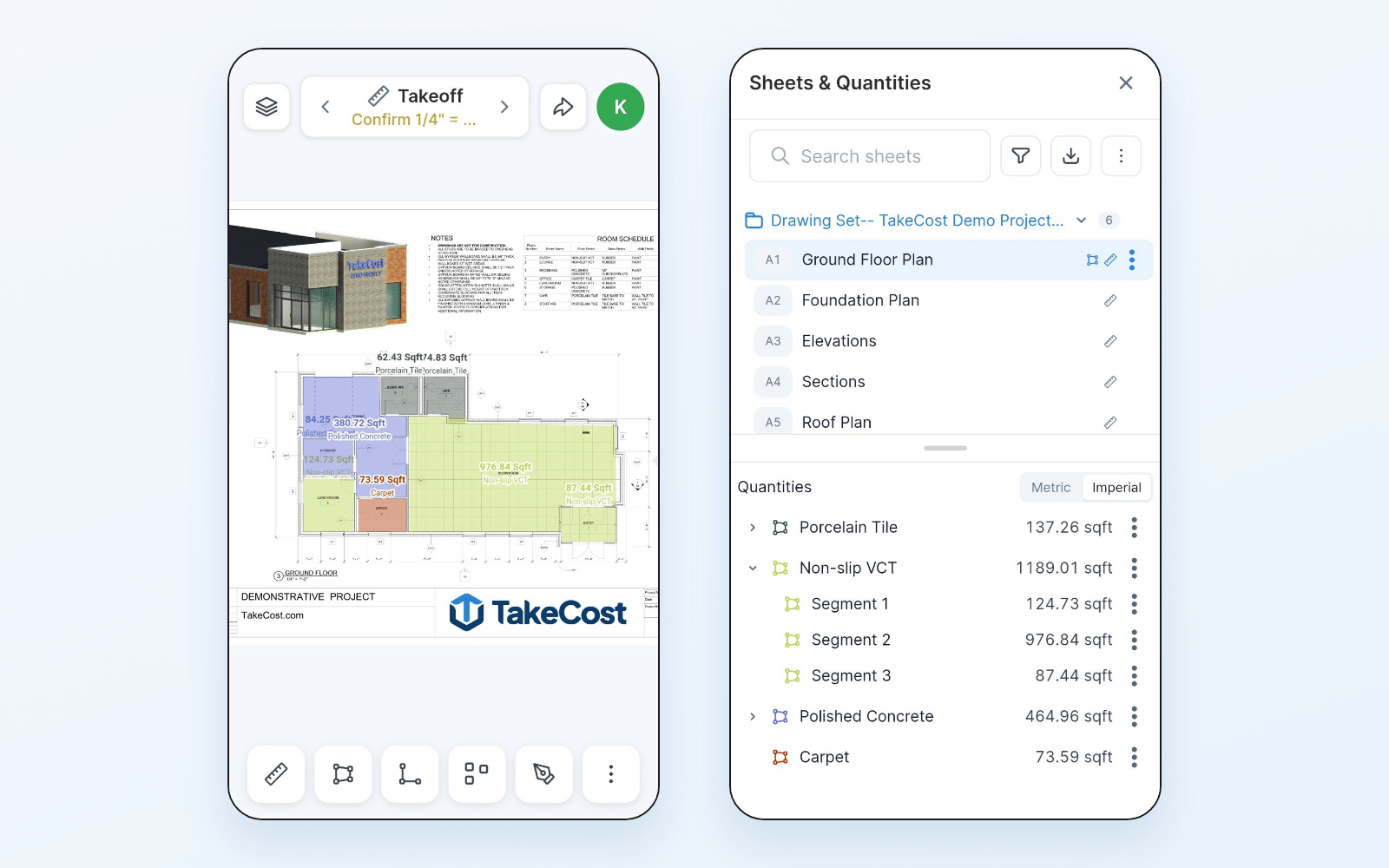
With the takeoff shared, the supervisor opens the project and expands the VCT line. It is made of three measured areas: 976.84, 124.73 and 87.44 sq ft. The last one is the east room, so the answer is yes. Nobody had to send a file.
Seeing the drawing is only part of it. A site question often needs more than the plan:
| Information | Why it matters | Where it lives in a shared takeoff |
|---|---|---|
| The drawing | Everyone needs to look at the same sheet | The sheet list, with sheet numbers and names |
| The measured area | Shows what was counted and what was left out | The quantity and its parts, highlighted on the sheet |
| The priced line | Shows what the number means for the bid | The Estimate tab, which view access also shows |
| The decision | Someone has to say whether the number changes | Not in the software. That is the bid owner’s call. |
Who needs to see, check or change the work?
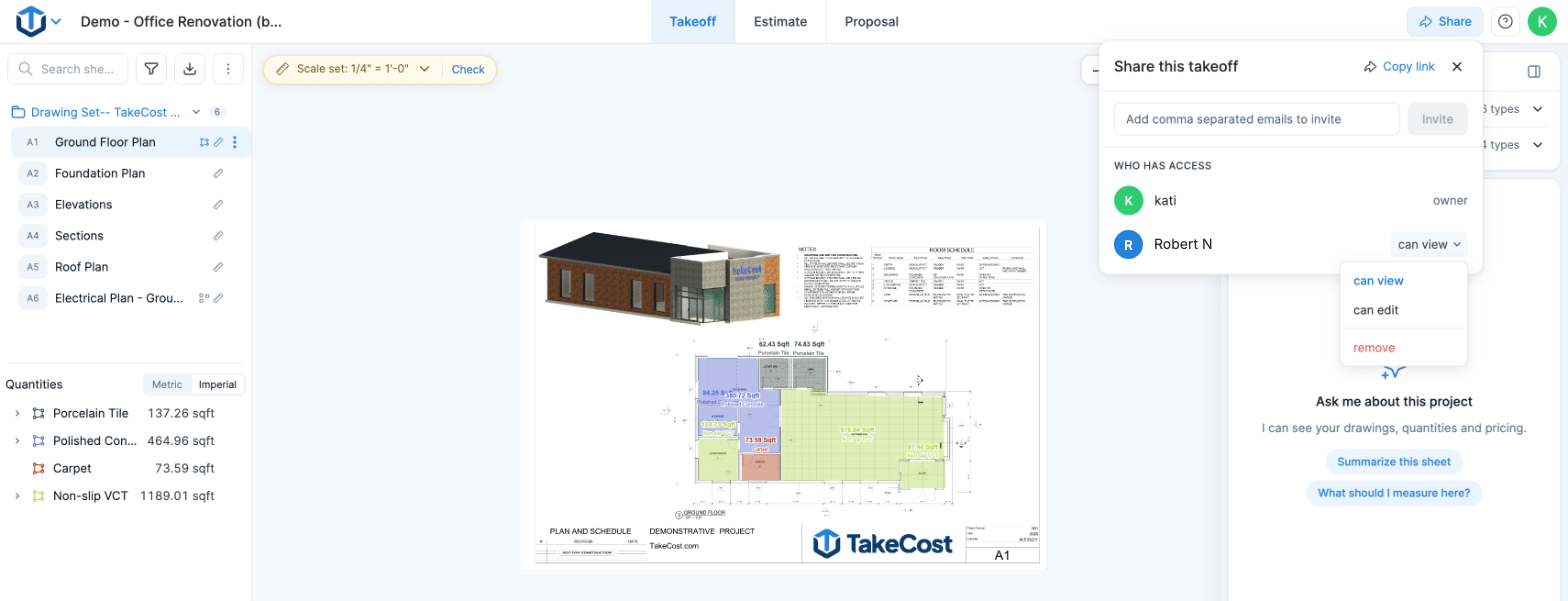
In TakeCost, the person who creates a project is its owner. When the owner clicks Share, they can invite people by email and give each one of two access levels:
- Can view: opens the project and sees everything, but cannot save changes.
- Can edit: can change the takeoff and the estimate.
New people start on can view. Only the owner can invite someone, change their access or remove them. Each person signs in with their own TakeCost account, and the project appears under Shared With Me.
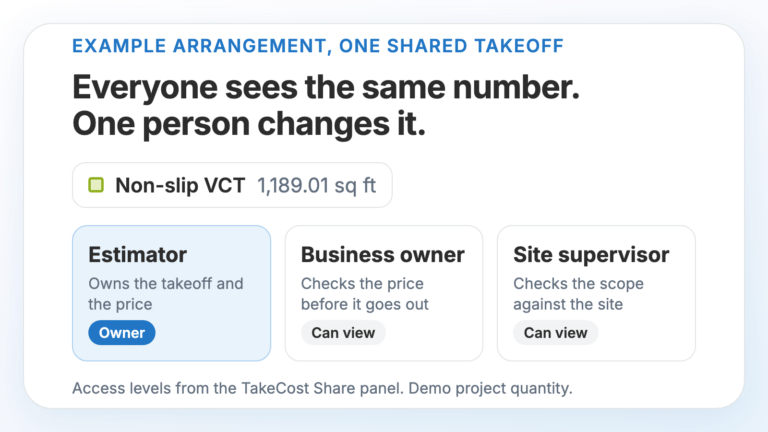
Here is one way a small team could set it up. It is an example, not the only right answer.
| Person | Their job on the bid | Access to give |
|---|---|---|
| Estimator | Owns the takeoff and the price, and makes every change | Owner of the project |
| Business owner | Checks the price and approves it before it goes out | Can view, or can edit if they also adjust pricing |
| Site supervisor | Checks the scope against the site and raises questions | Can view |
Two things to agree before anyone opens the project:
- One bid owner. Questions go to them, and they decide what changes. Two people editing the same takeoff without talking is how a number changes and nobody knows why.
- One drawing set. Agree which issue of the drawings you are all looking at, by sheet number and date.
How does a supervisor use it on site?
Here is how the east-room question could play out on a walk-through. It is an example of how a team might work, not a field trial we ran.
- Open the same drawing with the crew. On a phone or tablet, the supervisor opens the shared project, picks the ground floor plan and expands the VCT line. Everyone looks at the same three measured areas.
- Confirm where the finish starts and stops. Walk the edges of each area: where the VCT meets the carpet in the office and the polished concrete in receiving, and whether the entry at the east end is in.
- Check the measured area against the room. Tape one room and compare it with its saved area, such as the 87.44 sq ft entry. A small difference is normal. A missing room or a wall in the wrong place is not.
- Send differences to the estimator. Report what you found with the sheet and the area name. The estimator decides whether the takeoff changes, makes the change and tells the team.
The value is having the measured scope on site when the question comes up. The crew sees exactly what was counted, and the estimator gets a precise question instead of a vague one.
What can a shared colleague see and change?
We checked this with two TakeCost accounts on the demo project. The colleague on can view saw the same sheet, the same 1,189.01 sq ft and its three areas, and the Estimate tab with cost, markup, profit and sell price. When they tried to change a number, TakeCost refused it. On a phone, the shared project opens on the drawing and the Sheets & Quantities panel, which is what you need on site. The estimate and the proposal are for a computer. TakeCost runs in the phone’s web browser, so you need a signal where you open it.
What changes: the question and the answer point at the same saved number, so there is less searching, fewer screenshots and less explaining which drawing you mean. What stays the same: the conversation still happens by phone, text or email, and the estimator owns every change.
Who should get the project, the proposal or a drawing PDF?
Each option shows different numbers, so choose by the person, not by their job title.
| Send | What it shows | Good for |
|---|---|---|
| The shared project | The drawings, the quantities and the Estimate tab, with your costs, markup and profit | People you trust with your margins, such as a business partner, office manager or supervisor |
| The proposal | The scope and the selling prices you choose to show, with the markup built into the unit price | The client |
| A marked-up drawing PDF | The drawings with your takeoff shapes, notes and a quantity legend, and no prices | A crew member or subcontractor who needs the scope but not the price |
In TakeCost, the drawing PDF is under Takeoff, Export, Download PDF, where you pick the sheets and what to include. Open it before you send it and check that it shows only what you meant to share.
Sharing comes with TakeCost Core, the free plan. Get started, it’s free, then share one project with a colleague and see if it answers their questions. More on the tools is on our features page.
What should you test before your team depends on it?
- Accounts: everyone has their own TakeCost account under the email you invite.
- Access: the project shows up in their Shared With Me list.
- Same item: you both find the same quantity on the same sheet and read the same number.
- Limits: a view-only person tries a change, and it is refused.
- What they see: you are comfortable with them seeing the Estimate tab, prices included.
- Device and signal: they open it on the phone or tablet they really use, where they really work. TakeCost runs in a web browser, so plan on needing a connection.
- Changes: agree how the team hears about a change. Don’t assume anyone is told automatically.
When is shared cloud takeoff worth introducing?
| Situation | What it looks like | What to do |
|---|---|---|
| Worth it now | Site and office keep asking about the same scope on live bids, and files go back and forth every week | Share the next bid with one person on view access |
| Not yet | One estimator does the bids alone, and others review a job now and then | A PDF or the proposal is enough for now |
| Use a PDF instead | The person should not see your prices, or does not have a TakeCost account | Send a marked-up drawing PDF, or the proposal if they are the client, not the project |
If it looks worth it, try a small pilot: one live bid, the estimator as owner and one site person on can view. Before you start, note how many times files or screenshots went back and forth on your last similar bid. After the bid, compare. If questions were answered by pointing at the takeoff instead of sending files, keep going. If not, a PDF may be all your team needs.
If you are still comparing tools, our guide to choosing construction takeoff software lists what to check, sharing included.
About our example
The site walk-through is an example. The sharing check used two TakeCost accounts on the demo project, one as owner and one on can view, and the phone images come from a real phone signed in as the shared colleague. We did not test two people editing at once, offline use, or how changes reach other people, and we did not measure time saved.
Frequently asked questions
Does sharing a plan mean everyone can edit it?
No. In TakeCost, people you invite start on can view. The owner can switch someone to can edit, and only the owner can change access or remove people.
Can a site reviewer see quantities without changing the bid?
Yes. With can view they see the sheets, quantities and estimate, and changes are refused. They also see your prices and markup, so share with people you trust with those numbers. For anyone else, send a marked-up drawing PDF.
Does cloud takeoff work without an internet connection?
TakeCost runs in a web browser, so plan on needing a connection. We have not tested offline use. Check the signal where your crew will actually open it.
Does each person need their own account?
Yes. Everyone signs in with their own TakeCost account. Sharing is included in Core, the free plan. See the pricing page for what each plan includes.
Reviewed by: Gevoni Thomas, TakeCost
Sources
- Sharing test: TakeCost demo project, ground floor plan, non-slip VCT quantity, in the live TakeCost app on October 29, 2026, with an owner account and a second account on view access.
- TakeCost plans: the in-app plan page and takecost.com/pricing, checked October 29, 2026.
- Office and site scenario and the site walk-through: examples made for this guide.
- Export options: the Export panel in the Takeoff tab of the live TakeCost app, checked November 5, 2026.