
Draw once. Get instant full material quantities.
Smart scopes turn measured geometry into complete material outputs for real construction systems.
One simple workflow across every system
Draw first, then apply the system and adjust the details. Every smart scope follows the same process so estimating stays fast and consistent.
Draw on the plan
Measure areas, lengths, or counts directly on the drawing using familiar takeoff tools.
Apply a system type
Assign what the geometry represents, such as wall, slab, framing, or structural scope.
Adjust key conditions
TakeCost generates organized material quantities based on the geometry and system settings.
Explore all TakeCost assemblies
Each assembly follows the same workflow — select, configure, draw, and review. Click an assembly below to see what's inside.
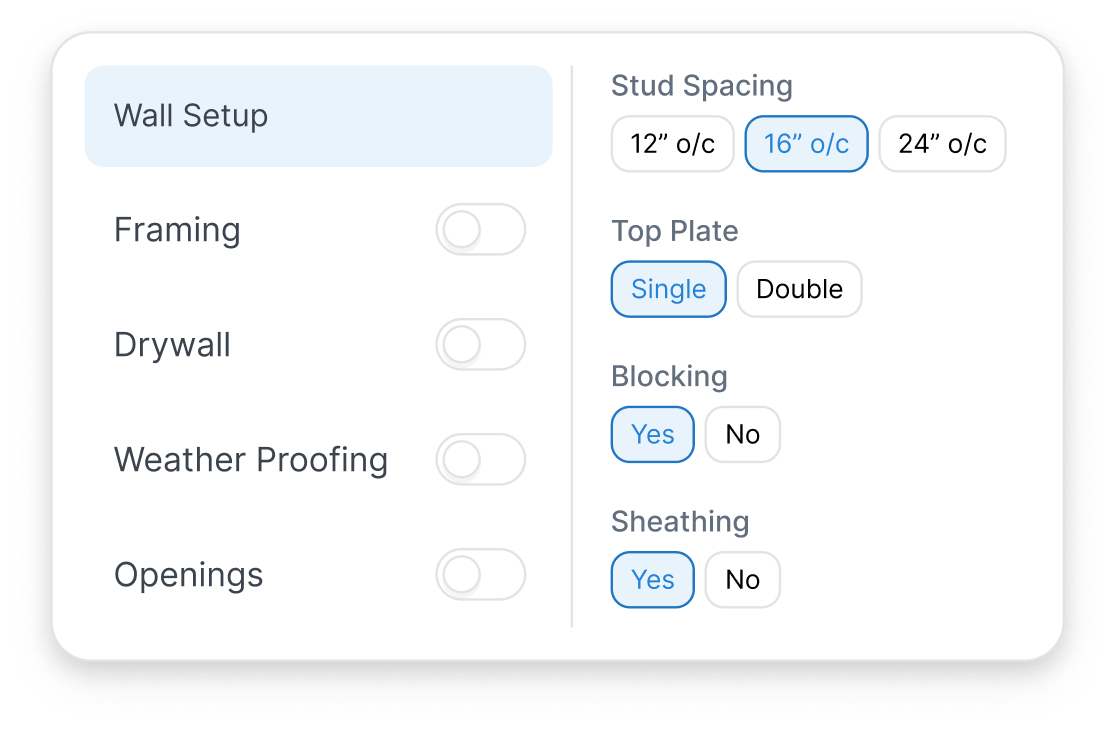
Stud Wall Assembly
Generate framing quantities directly from measured walls, including studs, plates, sheathing, insulation, and drywall based on configurable system inputs.
- Stud Count
- Insulation Area
- Track Length
- Drywall sheets
- Sheathing Area
- And more
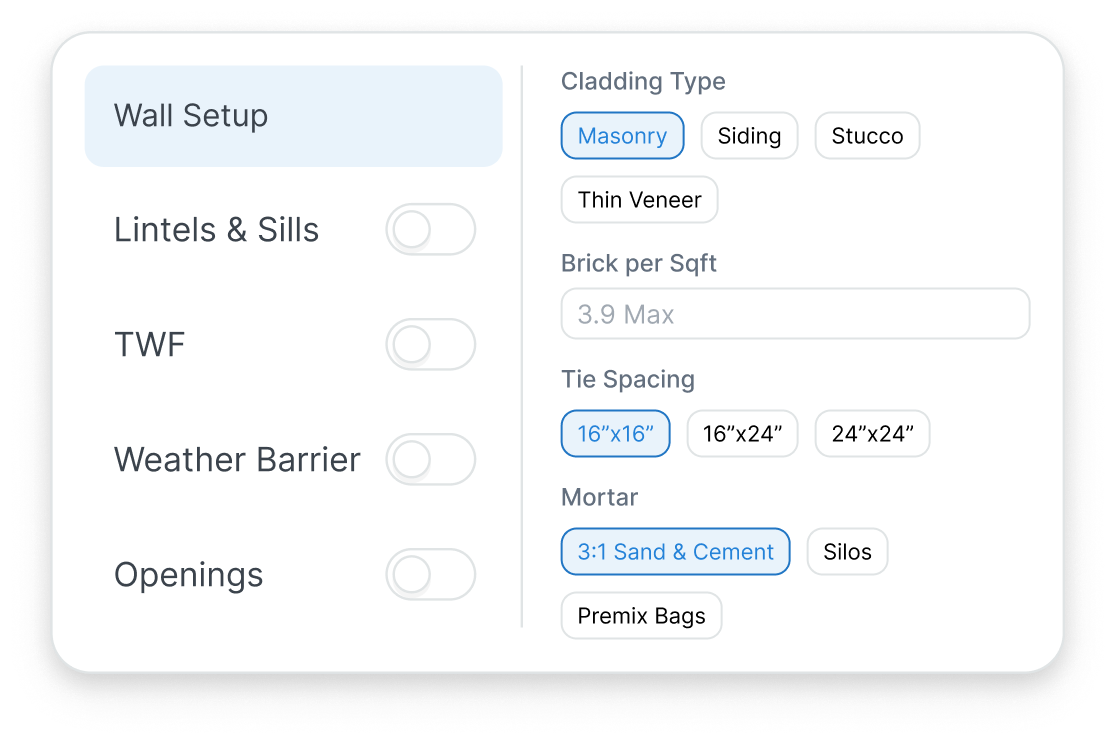
Cladding System
Generate exterior cladding quantities from measured wall areas for masonry veneer, siding, stucco / EIFS, and thin veneer systems, including trims, weather barrier components, and opening-related materials tied directly to the takeoff.
- Masonry, stucco, & siding area
- Tie Systems
- Air/moisture barrier
- Corners & Starter Trim
- Continuous insulation
- Lintels & flashings
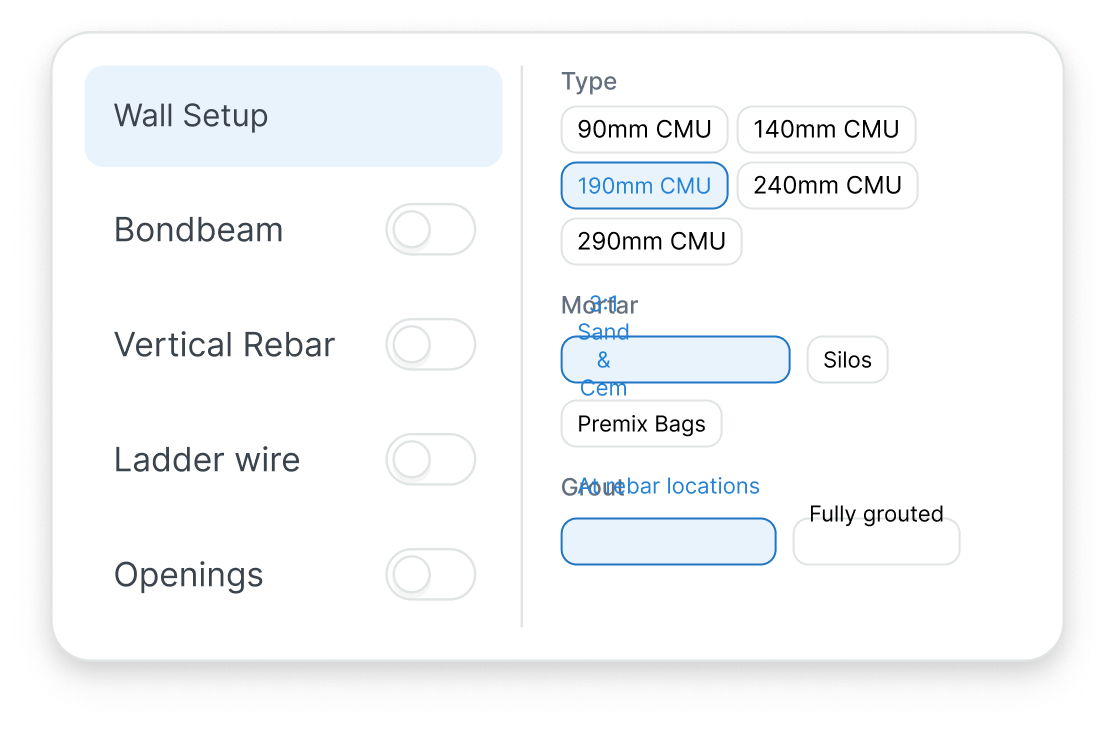
CMU Block Wall
Generate block wall quantities from measured geometry, including block count, mortar, grout, reinforcement, and accessories.
- Block pallet quantity
- Bundles of Ladder wire
- Mortar volume
- Vertical Rebar length
- Grout volume
- Bondbeam Rebar
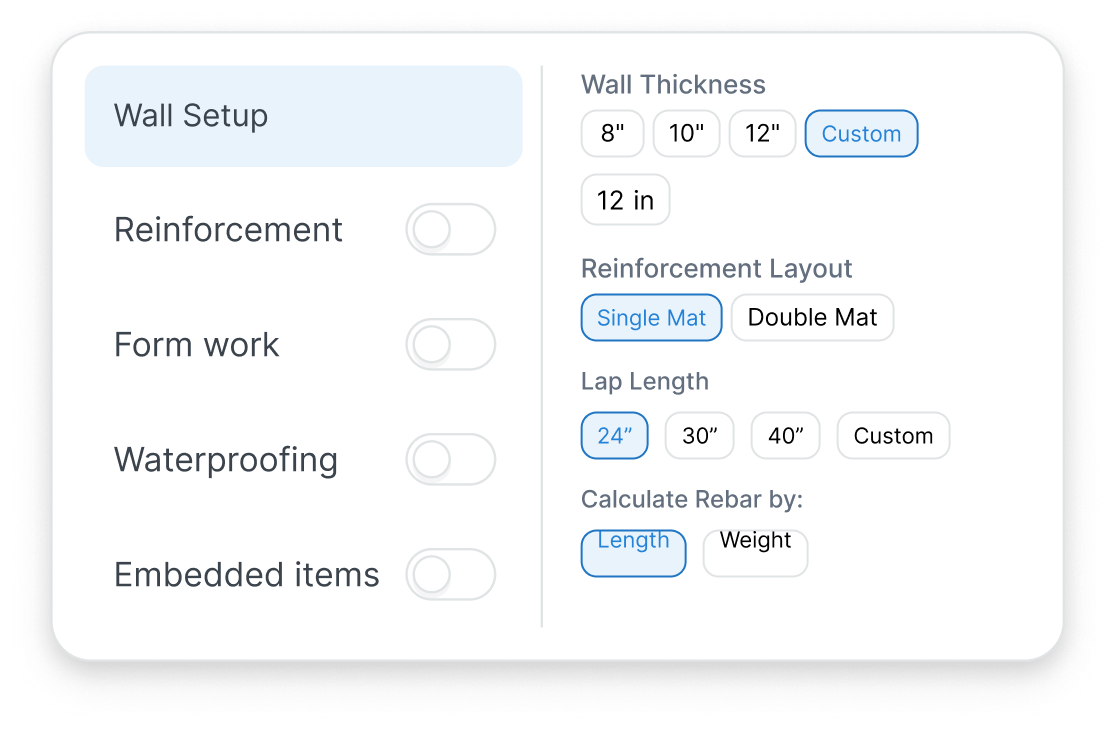
Concrete Walls
Calculate concrete wall quantities from measured wall geometry with configurable thickness and reinforcement options.
- Block pallet quantity
- Waterproofing area
- Reinforcement length
- Embedded items count
- Formwork area
- And more
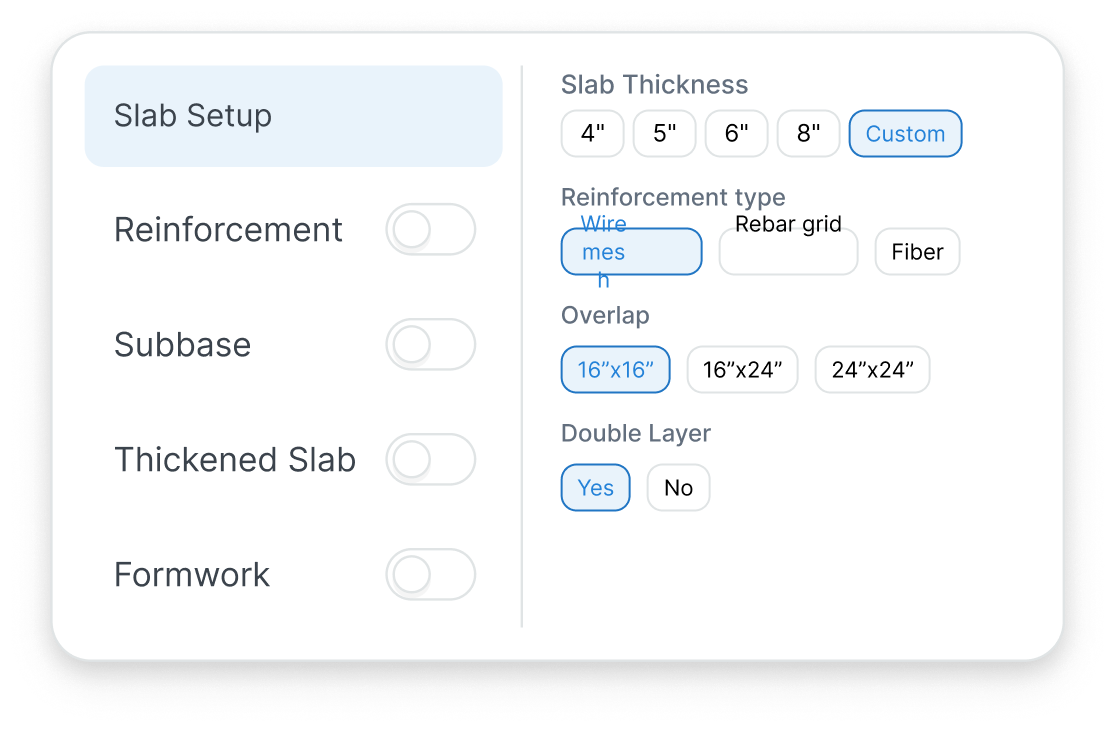
Concrete Slab
Generate slab material quantities directly from measured areas and thickness settings tied to real structural conditions.
- Concrete volume
- Rigid & Vapor barrier area
- Reinforcement quantity
- Thickened edge volume
- Subbase volume
- And more
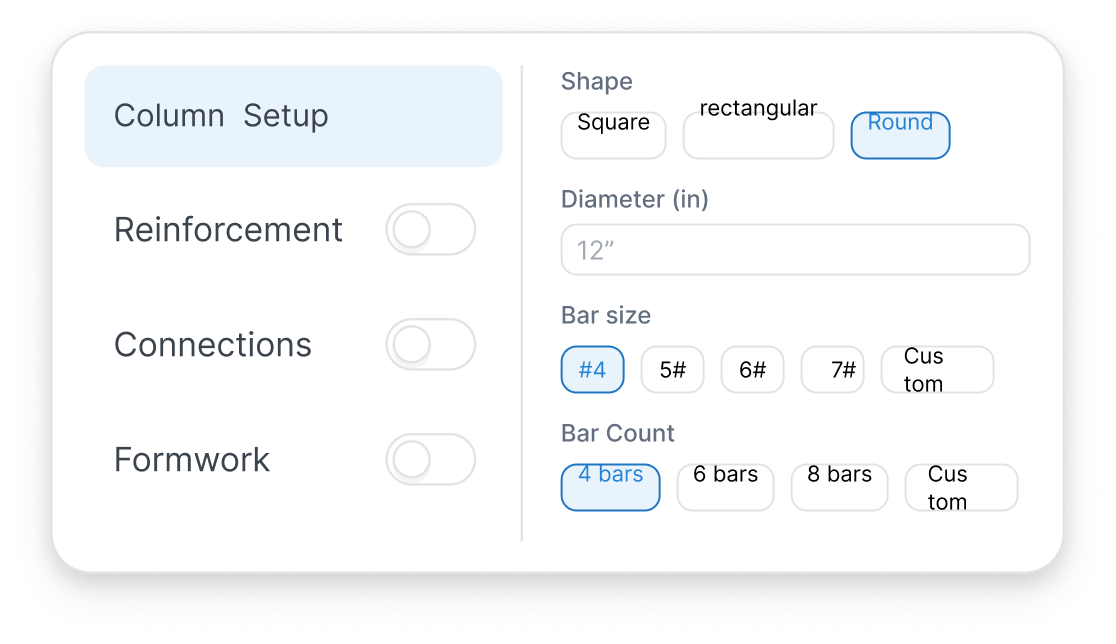
Piers / Columns
Calculate pier and column material quantities based on measured geometry and configurable structural inputs.
- Concrete volume
- Tie / hoop length
- Vertical rebar length
- Base connections
- Tie spacing count
- And more
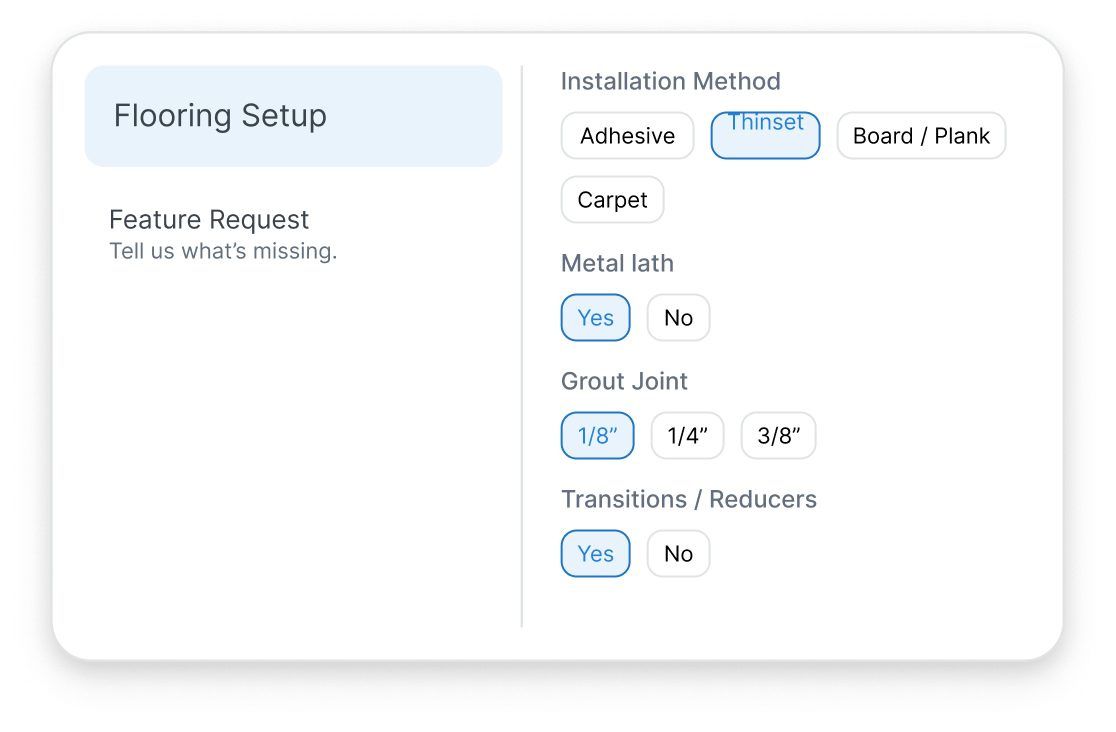
Flooring
Generate flooring quantities from measured floor areas with configurable material types and layout assumptions.
- Carpet, tile, & plank area
- Baseboards
- Thinset & metal lath
- Transition strips
- Underlayment area
- And more
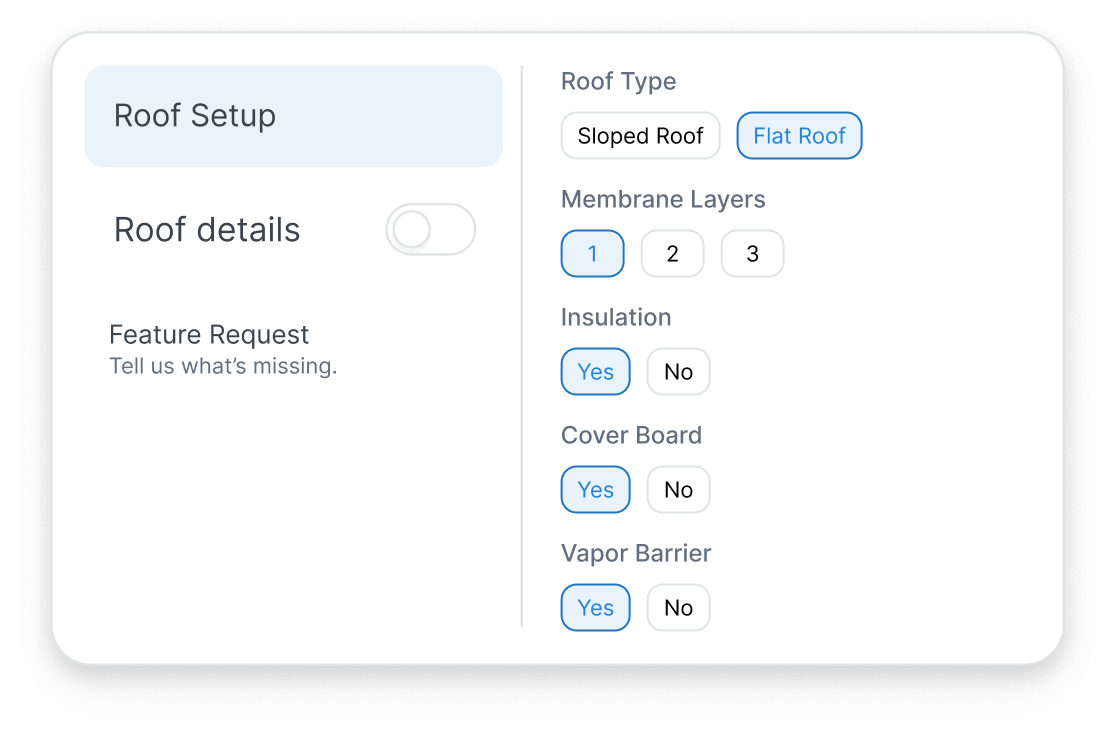
Roofing
Calculate roofing material quantities from measured roof geometry and slope conditions tied to real installation layouts.
- Roof area
- Ridged Insulation area
- Shingle bundles
- Parapet Flashing
- Underlayment & Cover board
- And more
Openings
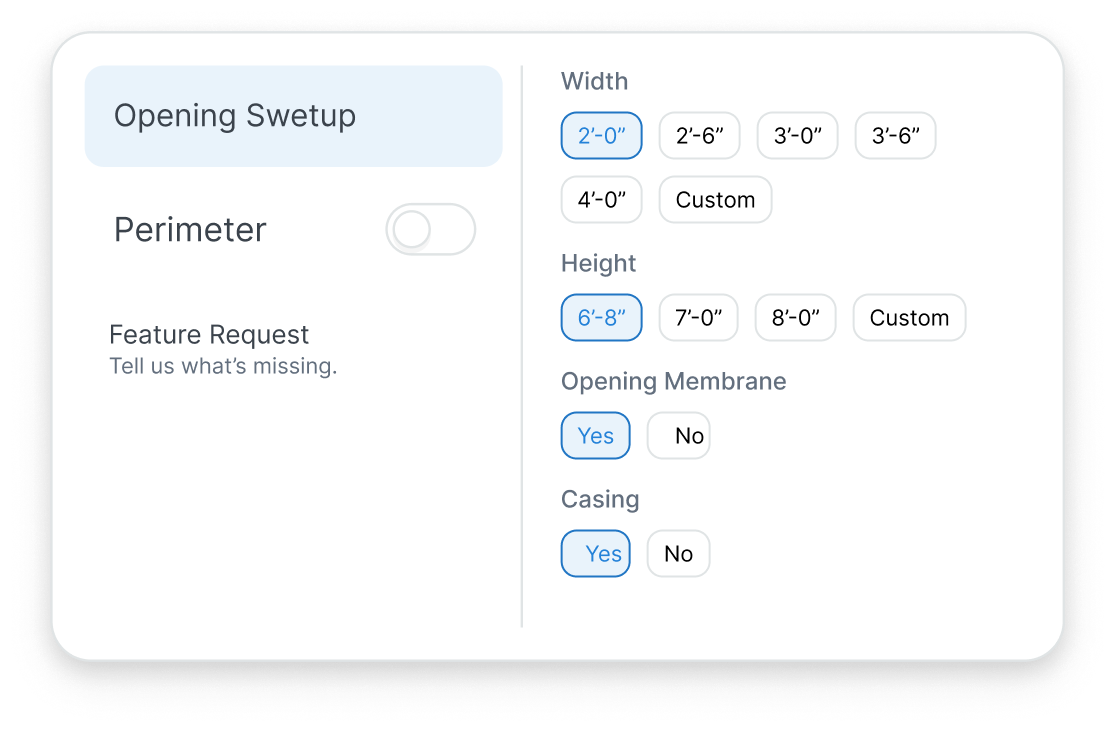
Generate opening-related quantities from measured doors and windows, including structural support components, trims, and flashing tied directly to wall geometry.
- Opening count
- Opening trim length
- Lintel length
- Through-wall flashing length
- Sill length
- And more
Draw once. Get material quantities instantly.
Apply smart systems to your takeoff and generate structured quantities automatically.
Start assemblies, measure on plan, and generate outputs faster.
Configure assemblies directly inside TakeCost
Draw on the plan without rebuilding scope elsewhere
Generate material outputs tied to your measured geometry
Access your files from anywhere in the cloud
Free Takeoffs Forever
No Credit Card Required
Frequently asked questions
We have put together some commonly asked questions
What is TakeCost?
TakeCost is a digital takeoff and estimating tool built by contractors for contractors. Upload plans, measure materials, build estimates, and create proposals all in one place.
Is TakeCost free for life?
Yes! TakeCost will always offer a free plan. You can start 1 new project per month and keep access to all your past projects. We’re committed to helping new and small construction professionals grow without the pressure of a paid subscription.
Do I need to install anything to use TakeCost?
No downloads needed. TakeCost is 100% cloud-based—just log in from any browser and start measuring.
Can I share my projects with others?
Yes. You can invite team members to view or collaborate on projects, depending on your plan.
Can I book a demo?
Yes! You can book a 30-minute demo with our team using this link: https://calendly.com/takecost/demo
How secure is my data on TakeCost?
Your data is safe with us. We run free daily backups of all user data and follow strict internal security and privacy protocols. From encrypted storage to limited access controls, TakeCost is built to keep your project files and measurements protected at all times.
What file types does TakeCost support?
TakeCost supports multi-page and single-page PDF plans, plus common image files like JPG and PNG. If you’re uploading an image, just provide one known measurement to set the scale and you’re good to go. Perfect for scanned drawings, sketches, or marked-up site photos.
Can I switch between Imperial and Metric units?
Yes. TakeCost supports both Imperial and Metric units. You can switch anytime—your measurements and scale will automatically adjust to match.
What happens if I hit my free project limit?
Once you reach 2 new projects in a month, you can either upgrade to a paid plan or wait until the next month resets. All your past projects remain accessible.
How do I contact customer support?
You can reach our customer support team through the following channels:
- Submit a Support Ticket – Visit our Help Center and click “Submit a Ticket”. Provide details about your issue, and our team will respond promptly.
- Use Our Live Chat – Look for the chat icon on our website for real-time assistance from a support agent.
- Email Us – Send your inquiries to takecost@congic.com, and we’ll get back to you shortly.
- Call Us – Reach our support team directly at 1-866-377-1787 for immediate assistance.
We’re here to help with any questions or issues you may have!