
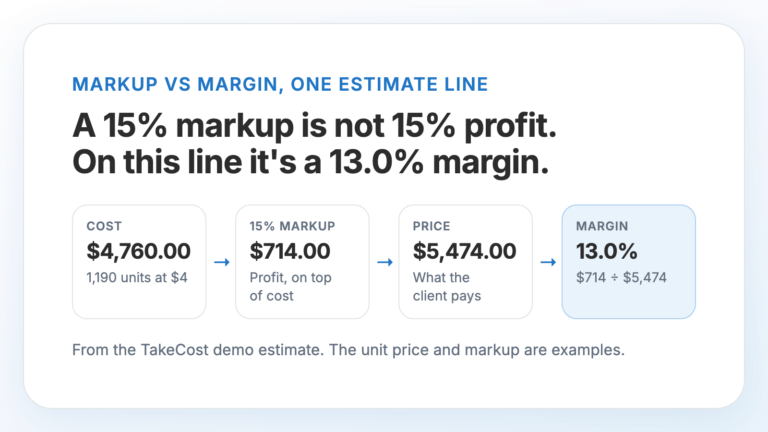

Markup is what you add on top of your cost. Margin is how much of the selling price is profit. They use the same dollars but divide by different numbers, so a 15% markup is only about a 13% margin. To get the margin you want, divide it by one minus that margin: a 20% margin needs a 25% markup.
This guide works through one real estimate line in TakeCost, gives you a table to go between the two, and shows why the margin on the whole job can be lower than the markup on any line.
Markup and margin on one estimate line
In the TakeCost demo project, the VCT line is 1,190 units at $4 each (an example price), with a 15% markup:
| Amount | How it’s worked out | |
|---|---|---|
| Cost | $4,760.00 | 1,190 × $4 |
| Profit | $714.00 | $4,760.00 × 15% markup |
| Selling price | $5,474.00 | $4,760.00 + $714.00 |
| Markup | 15% | Profit ÷ cost: $714 ÷ $4,760 |
| Margin | 13.0% | Profit ÷ price: $714 ÷ $5,474 |
Same $714 of profit. Measured against the cost it’s 15%. Measured against the price the client pays it’s 13.0%. Margin is always the smaller number, because the price is always bigger than the cost.
Markup to margin, and back
Use these to check a number quickly. Every figure is rounded to one decimal.
| Markup | Margin |
|---|---|
| 10% | 9.1% |
| 15% | 13.0% |
| 20% | 16.7% |
| 25% | 20.0% |
| 30% | 23.1% |
| 50% | 33.3% |
| Margin you want | Markup you need |
|---|---|
| 10% | 11.1% |
| 15% | 17.6% |
| 20% | 25.0% |
| 25% | 33.3% |
| 30% | 42.9% |
The math behind them:
- Margin = markup ÷ (1 + markup). A 25% markup: 0.25 ÷ 1.25 = 20%.
- Markup = margin ÷ (1 − margin). A 20% margin: 0.20 ÷ 0.80 = 25%.
Check the margin on the whole job, not one line
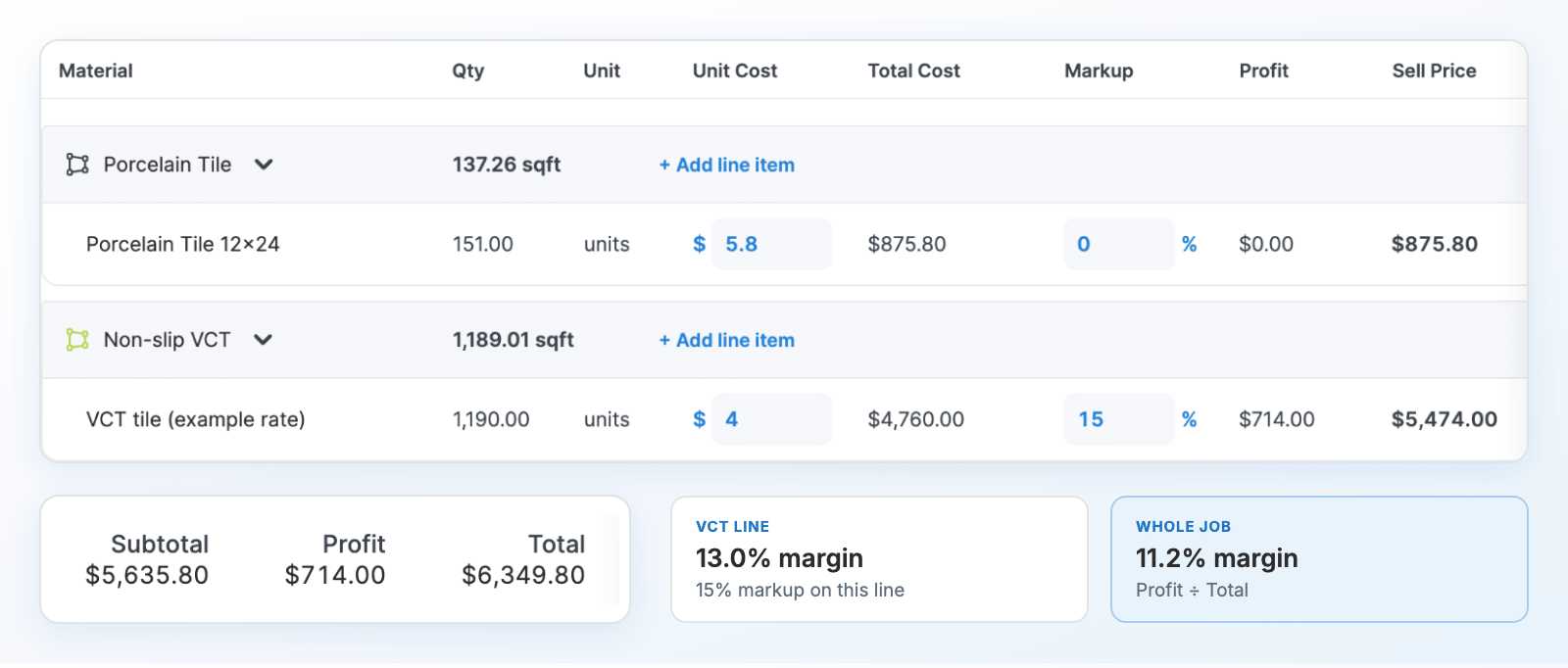
A line can carry a healthy markup while the job doesn’t. In the same demo estimate, the porcelain tile line has no markup at all:
| Amount | |
|---|---|
| Cost (Subtotal) | $5,635.80 |
| Profit | $714.00 |
| Total | $6,349.80 |
| Margin on the job | 11.2% |
The VCT line makes 13.0%, but the job makes 11.2%, because one line adds cost and no profit. Look at the job total before you send the price, and ask what each line is marked up on: materials only, or labour and subcontractors too. On a job where labour is most of the cost, a markup on materials alone leaves a thin margin.
In TakeCost each priced line has its own markup, and the Estimate header shows the job’s Subtotal, Profit and Total. To get the job margin, divide Profit by Total. Overhead you want to show on its own can go in as a General item, a line that isn’t tied to the drawing. Saved items in your Cost List have a Markup column too.
Price your next job and see the profit before you send it. Get started, it’s free.
What the client sees
Your client sees prices, not your markup. On the TakeCost proposal for this estimate, the VCT shows as 1,190 units at $4.60, $5,474.00 in total. The 15% is built into the unit price.
That’s also why the words matter. If a client or a general contractor asks for your margin, give them the margin, not your markup. Mixing them up overstates your profit by a couple of points or more.
Common markup and margin mistakes
- Thinking 15% markup means 15% profit. It’s 13.0% of the price.
- Setting markup to hit a margin without converting. For a 20% margin you need 25%, not 20%.
- Lines left at 0%. They add cost and no profit, and pull the job margin down.
- Markup on materials only. Check what the job margin is once labour and subs are in.
- Cutting markup to win a bid without checking what’s left. Convert it to margin first.
About our example
The quantities and lines are from the TakeCost demo project in the live app on November 11, 2026, on a Pro account. The $4 and $5.80 unit prices and the 15% markup are examples, not market prices or a suggested markup.
Frequently asked questions
Should I price with markup or margin?
Most estimates are built with markup, because you start from cost. Check the result as a margin, because that’s the share of the price you keep.
What’s a good margin for a contractor?
It depends on your overhead, the size of the job and how much risk you carry. Work out what your overhead costs you each year first; your margin has to cover it before any of it is profit.
How do I turn a margin into a markup?
Divide the margin by one minus the margin. For 20%: 0.20 ÷ 0.80 = 25% markup.
Does TakeCost show my margin?
TakeCost shows the cost, markup, profit and selling price on every line, and Subtotal, Profit and Total for the job. Divide Profit by Total to get the margin.
Build your next estimate with the profit in plain sight. Get started, it’s free.
Reviewed by: Gevoni Thomas, TakeCost
Sources
- Estimate lines, totals and proposal: TakeCost demo project in the live app, November 11, 2026.
- Example unit prices and markup: examples made for this guide.